Track and manage signing
See who has signed, remind signers, share signing links and handle a signer who declines.
Once a document is out, Agreement.new keeps watch. Open the document to see where each signer stands, and step in only when you want to.
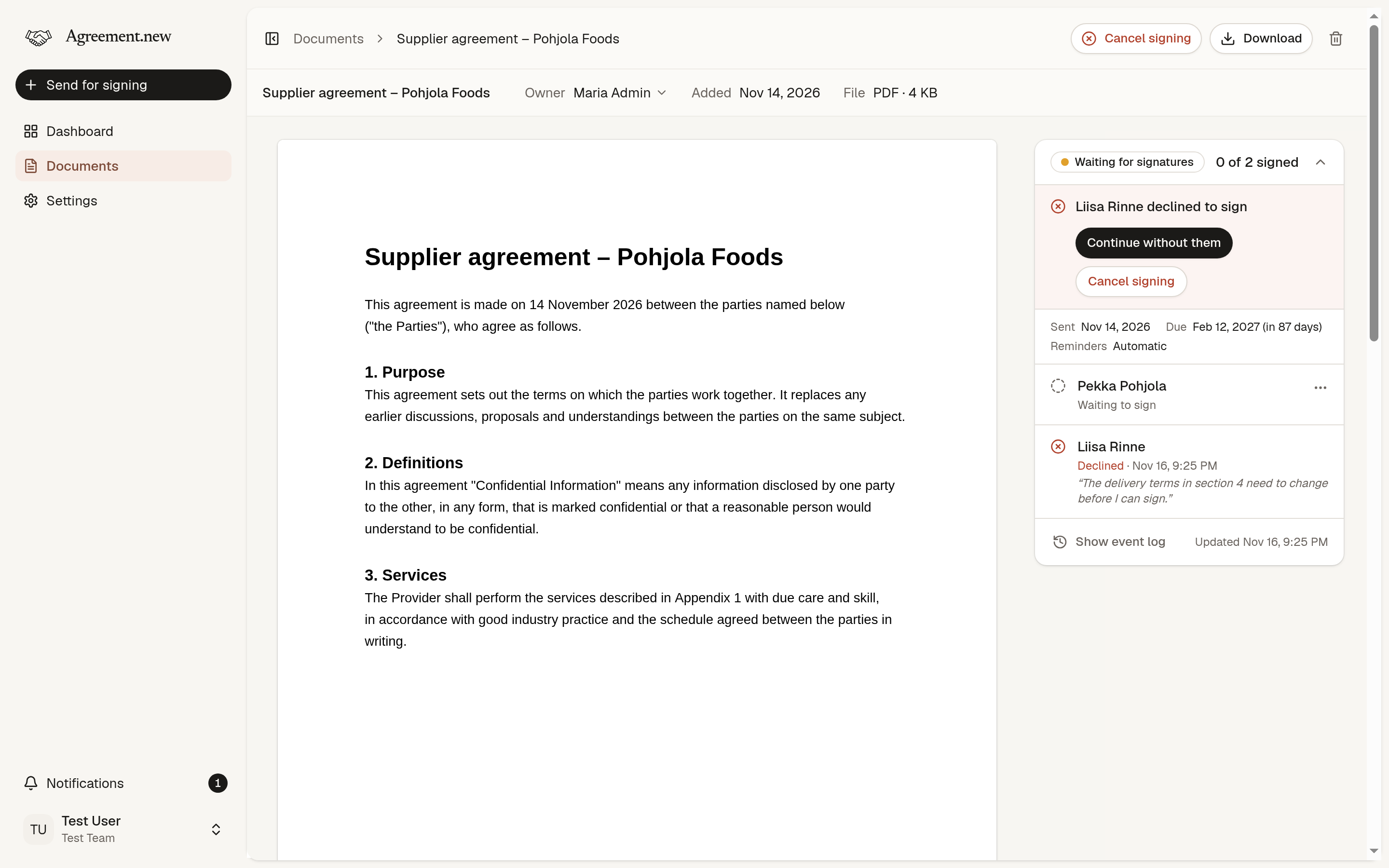
See who has signed
- The dashboard shows what needs your attention, what is waiting for signatures and what was signed recently.
- The Documents page lists every document with its status.
- A document's page shows each signer and their status, when it was sent and whether reminders are on. Show event log opens the full history: when invitations and reminders were emailed and opened, and when and how each person signed.
Statuses update as things happen. You don't need to refresh the page.
Remind a signer
Signers are reminded automatically unless you turned that off (how reminders work). To nudge someone sooner, open the signer's menu and choose Send reminder. They get an email with their signing link.
To keep inboxes friendly, a signer can be reminded once an hour and three times a day.
Share a signing link yourself
Sometimes the invitation gets lost in an inbox. Choose Copy signing link in the signer's menu and send it in your own message, wherever the conversation already is.
The link is personal. Whoever opens it signs as that signer, so give it only to them. Copying a link is recorded in the team's audit log.
When a signer declines
A signer can decline, and tell you why. The document is then marked Blocked, reminders pause, and you choose how to go on:
- Continue without them. The signer is excused: the document no longer needs their signature, and it completes when everyone else has signed.
- Cancel signing. Nobody can sign any more. Fix what needs fixing and send the document again.
Excuse a signer
You can also excuse a signer who hasn't declined, for example someone added by mistake. Choose Excuse from signing in the signer's menu.
- Their signing link stops working right away.
- They stay listed on the document as excused.
- It can't be undone. To ask them again, cancel signing and send the document again.
At least one signer has to remain. To release the last one, cancel signing instead.
Cancel signing
To stop collecting signatures, open the document and choose Cancel signing. Cancelling ends the signing for everyone: signing links stop working and the document becomes Cancelled. It can't be undone, but you can send the document again, to the same people or to others.
When the deadline passes
If not everyone signs in time, the document becomes Expired. We let you know when a deadline is getting close and when it has passed. Send the document again to give your signers more time.
Who can do what
Everyone in the team can see every document. Reminding and excusing signers, copying signing links and cancelling signing are for the document's owner and the team's admins and owners. See Teams, members and roles.
Didn’t find what you were looking for? Email hello@agreement.new and we’ll help.